Print on both sides
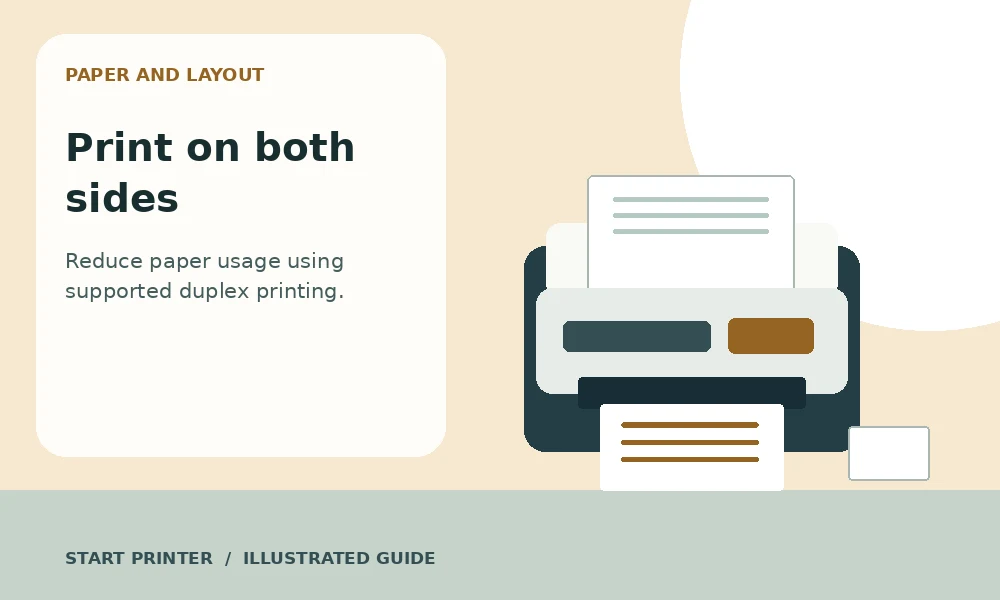
Reduce paper usage using supported duplex printing.
Step-by-step guide
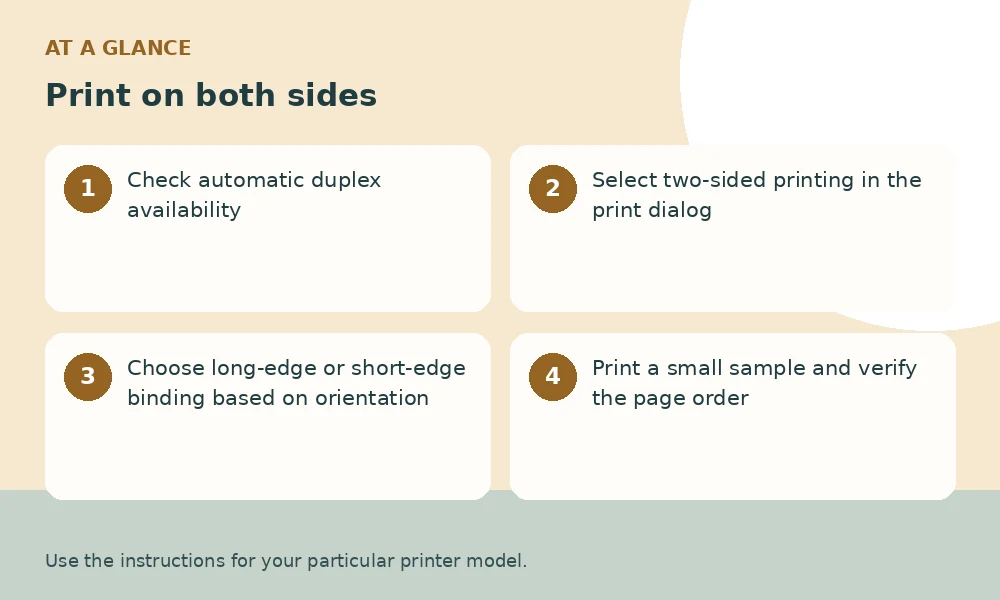
Check automatic duplex availability
Check your printer documentation if the controls or parts differ from the illustration.
Select two-sided printing in the print dialog
Pause if an on-screen message appears and read it before proceeding.
Choose long-edge or short-edge binding based on orientation
Keep the settings consistent with the paper and device you actually use.
Print a small sample and verify the page order
For manual duplex, follow the model's specific reinsertion guidance to avoid upside-down pages.
Printer features and menu labels vary by model. Check the equipment documentation for model-specific instructions, supported supplies and safety precautions.
Browse all guides →