Print selected pages only
Avoid sending an entire document when you need a few sheets.
Step-by-step guide
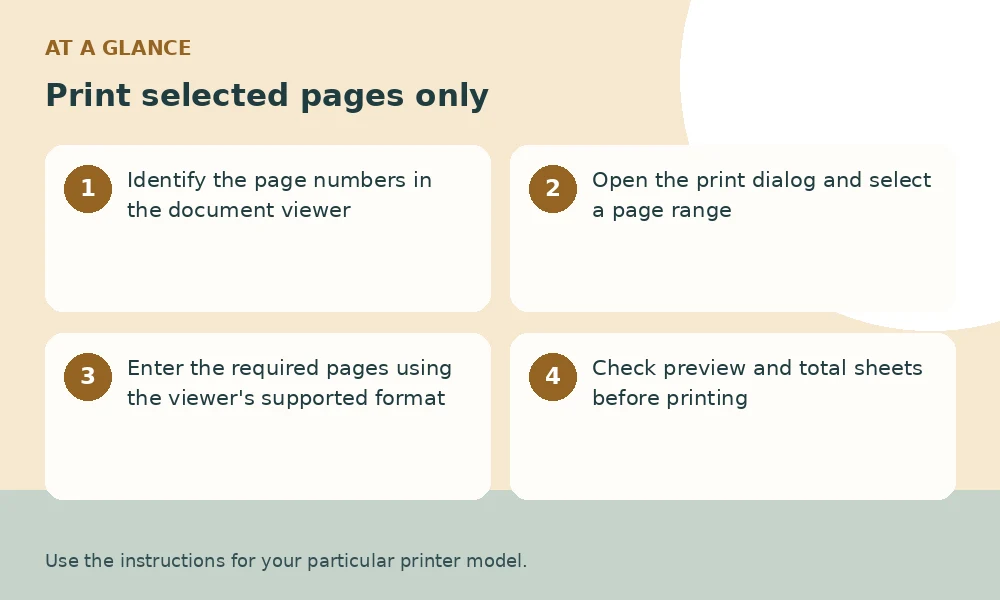
Identify the page numbers in the document viewer
Check your printer documentation if the controls or parts differ from the illustration.
Open the print dialog and select a page range
Pause if an on-screen message appears and read it before proceeding.
Enter the required pages using the viewer's supported format
Keep the settings consistent with the paper and device you actually use.
Check preview and total sheets before printing
Page labels in a document may differ from the viewer's physical page numbers.
Printer features and menu labels vary by model. Check the equipment documentation for model-specific instructions, supported supplies and safety precautions.
Browse all guides →