Set portrait and landscape orientation
Fit the layout to the shape of the page.
Step-by-step guide
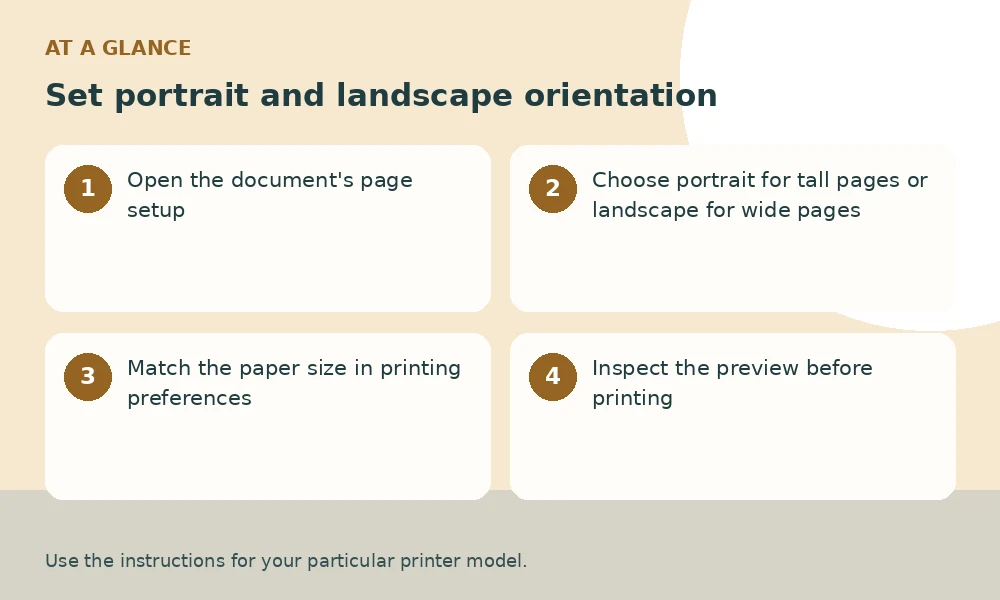
Open the document's page setup
Check your printer documentation if the controls or parts differ from the illustration.
Choose portrait for tall pages or landscape for wide pages
Pause if an on-screen message appears and read it before proceeding.
Match the paper size in printing preferences
Keep the settings consistent with the paper and device you actually use.
Inspect the preview before printing
An automatic orientation option may rotate pages differently than expected.
Printer features and menu labels vary by model. Check the equipment documentation for model-specific instructions, supported supplies and safety precautions.
Browse all guides →