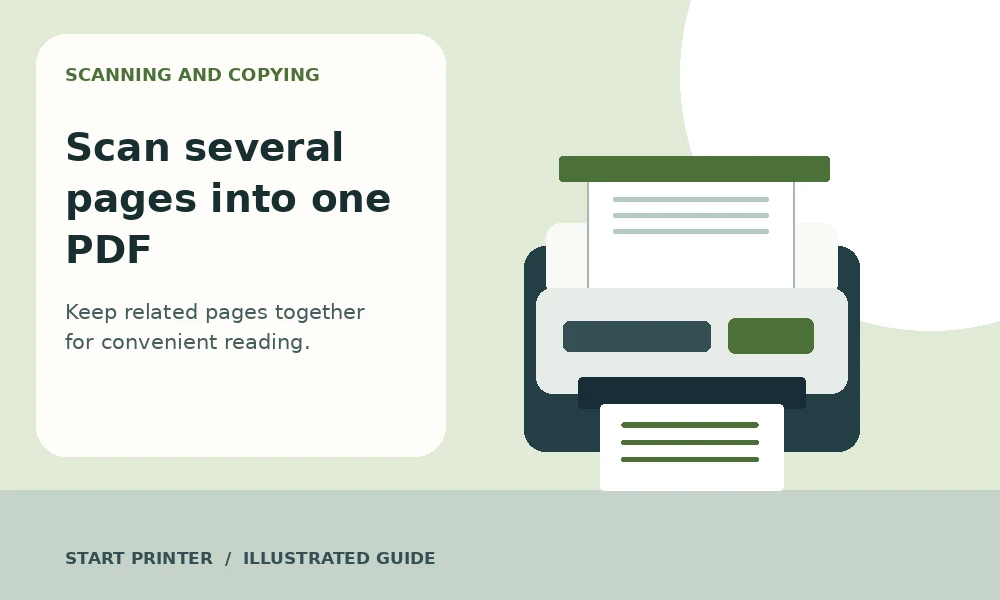
Scan several pages into one PDF
Keep related pages together for convenient reading.
Step-by-step guide
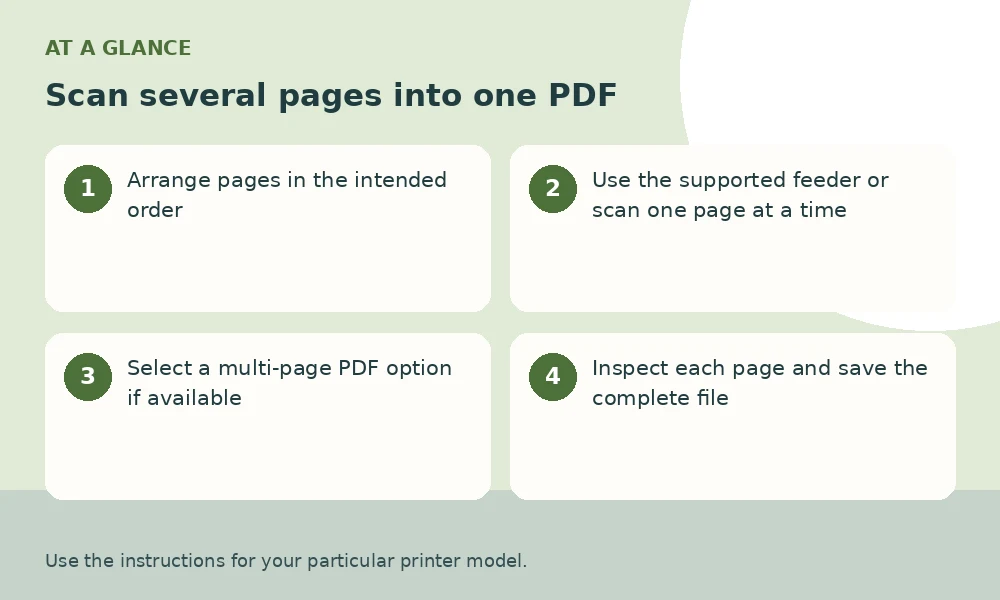
Arrange pages in the intended order
Check your printer documentation if the controls or parts differ from the illustration.
Use the supported feeder or scan one page at a time
Pause if an on-screen message appears and read it before proceeding.
Select a multi-page PDF option if available
Keep the settings consistent with the paper and device you actually use.
Inspect each page and save the complete file
Do not load stapled, fragile or unsuitable originals into an automatic feeder.
Printer features and menu labels vary by model. Check the equipment documentation for model-specific instructions, supported supplies and safety precautions.
Browse all guides →